
Frequency Sweep
Frequency Sweep
Control Information

Fig. 15 Frequency Sweep Controls
To initiate a frequency sweep, click the “Frequency Sweep” button. The user will be prompted for a location to save the corresponding ADC capture information.
Then, the GUI will initiate a series of ADC captures beginning at the current F1 value selected in Configuration, increment the current configuration by the amount chosen in the Step Size selection, (both F1 and F2 if gas mode is selected), and take another capture. This will continue an amount of times controlled by the “Number of Captures” spinner.
For example, a frequency sweep initiated at 1000 KHz with five captures will take ADC captures at 1000.0 KHz, 1012.5 KHz, 1025.0 KHz, 1037.5 Khz, and 1050 Khz.
As each capture comes in, the graph will display the maximum amplitude of the ADC capture taken at that frequency for both the DNS and UPS channel. These correspond to how strong the signal in the channel was at that frequency; a high peak amplitude is desired.
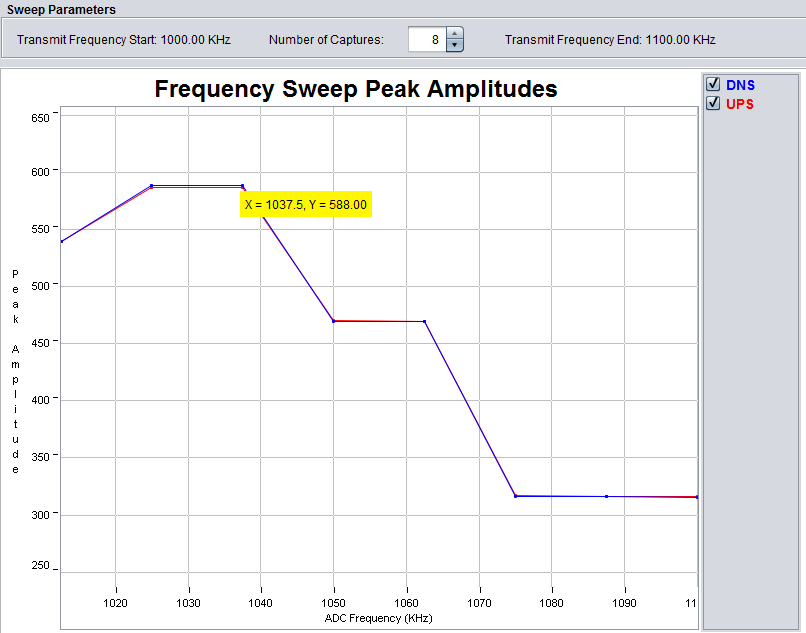
Fig. 16 Frequency Sweep Example
For example, in the example above, the ADC captures taken at 1025.0 KHz and 1037.5 Khz correspond to the strongest signal strength for both the DNS and UPS channels for this meter configuration. Consequently, the user should consider using those F1 values for future USS tuning.
Error Handling
Error Scenarios
The Frequency Sweep can encounter an error if it tries to put the target into a rejected configuration. It will graph each accepted configuration as it comes in.
If the error occurs on the first fire, verify that the current configuration in the Configuration tab is a valid one. If it occurs later, consider lowering the number of captures or decreasing the starting value of F1.
Additionally, check the Error tab if it appears. The error messages transmitted from the target can give details as to configuration problems experienced.
More Information
- For more information on the application, and available evaluation kits, see the download page.
- For technical support, email the USS GUI support team or visit the MSP430 E2E forum