
Packet Sniffer
Setting Up Ubiqua Protocol analyzer
Install the Required Software
- Download the Ubilogix Ubiqua packet sniffer software from: https://www.ubilogix.com/ubiqua/
- To get the drivers for the CC2531 dongle install the TI Packet sniffer from: https://www.ti.com/tool/packet-sniffer
- To program the CC2531 install TI Flash Programmer from: https://www.ti.com/tool/flash-programmer
Required Hardware
The following board should be used with the Ubiqua Protocol Analyzer:
- TI CC2531 USB Dongle: https://www.ti.com/tool/CC2531USB-RD
- (optional) CC-debugger https://www.ti.com/tool/cc-debugger
The CC2531 dongle is pre-programmed with the packet sniffer firmware. It is not necessary to reprogram the CC2531 dongle.
Hardware Setup
- Connect the CC2531 to the computer with Ubiqua installed.
- If necessary, use SmartRF Flash Programmer with the cc-debugger to flash the
CC2531 dongle. Use the hex image
sniffer_fw_cc2531.hexatC:\Program Files (x86)\Texas Instruments\SmartRF Tools\Packet Sniffer\bin\general\firmware.
Running the Packet Sniffer
- Connect the CC2531.
- Start Ubiqua.
- Select
Menu→Device→Add Device, and choose the CC2531.
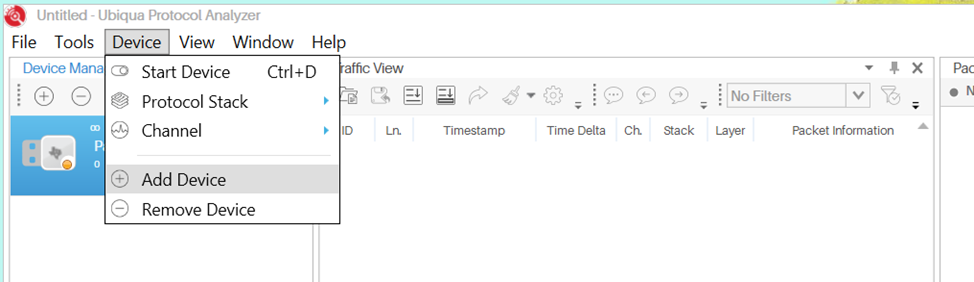
Figure 22. ubiqua add device
- Set the Default Protocol to Thread select
Menu→Tools→Optionsthen selectGeneral→Default Protocol Stackand set it to Thread.
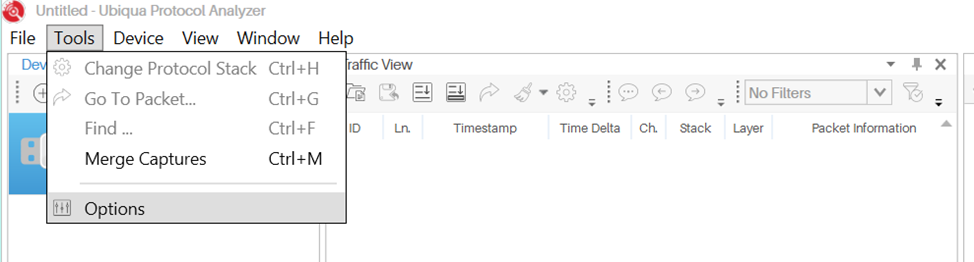
Figure 23. ubiqua options
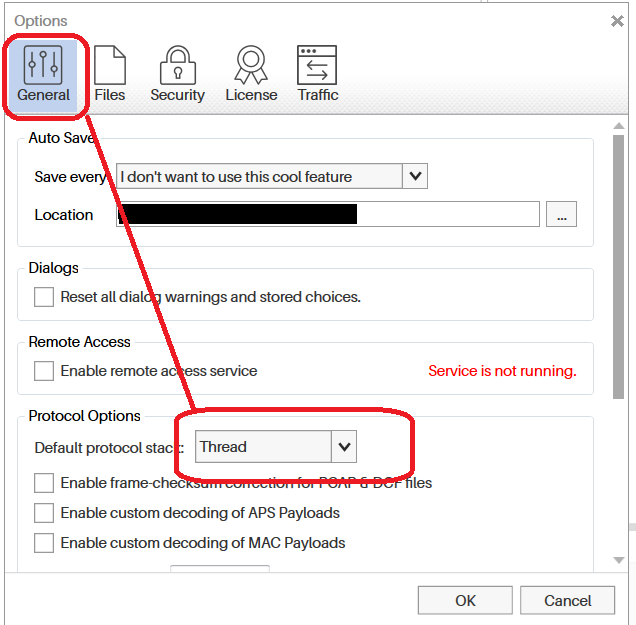
Figure 24. ubiqua select thread protocol option
- Enter the default Thread Encryption keys.
Figure 25. ubiqua add device
- From the
Options→Security Tab→KeyChain, choose Add, then select Thread Master Key By default, the OpenThread Thread Master Key is:00112233445566778899aabbccddeeffClick OK.
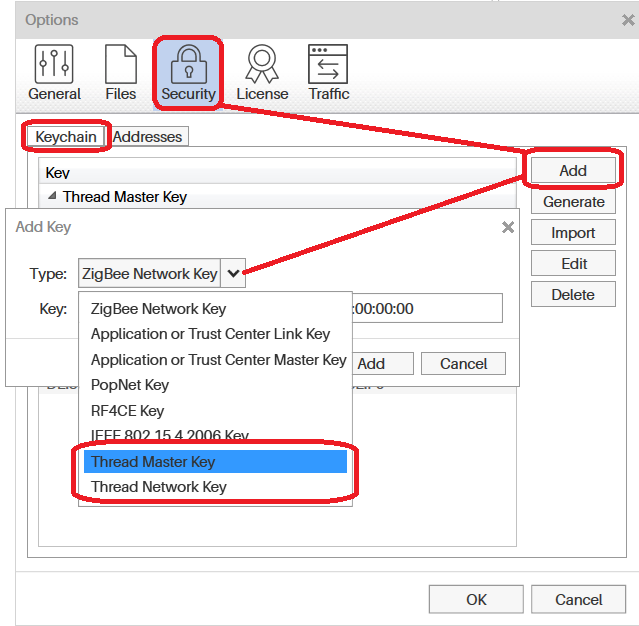
Figure 26. ubiqua add key option
- Choose the Channel.
| CLI device: | to choose the channel via the channel command. |
|---|---|
| NCP device: | is told via wpantund what channel to use via various configuration steps. (See the TI OpenThread Linux Quick Start Guide for details) |
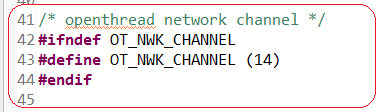
Figure 27. config channel
From Ubiqua, select Menu → Device Channel, and choose the matching
channel.
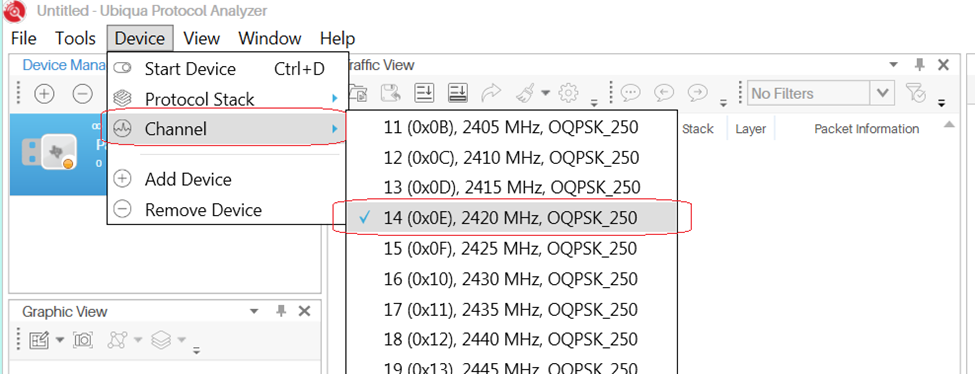
Figure 28. ubiqua select channel
- Start Capture.
From Ubiqua, Select Menu → Device → Start Device.
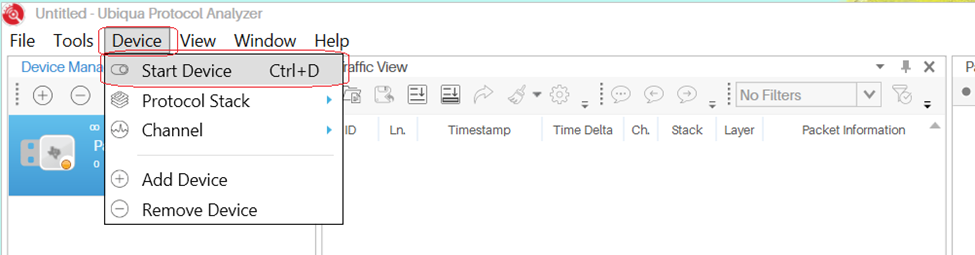
Figure 29. ubiqua start
- If required, Select:
Menu→View→Traffic View(or other selections) to view activity.
Setting Up Wireshark
To use a CC26x2 LaunchPad or other Texas Instruments device with Wireshark, download the SmartRF Protocol Packet Sniffer 2 and follow the User’s Guide to setup the Sniffer Agent.
- Open the SmartRF Protocol Packet Sniffer 2 and Wireshark as seen in Figure 30.
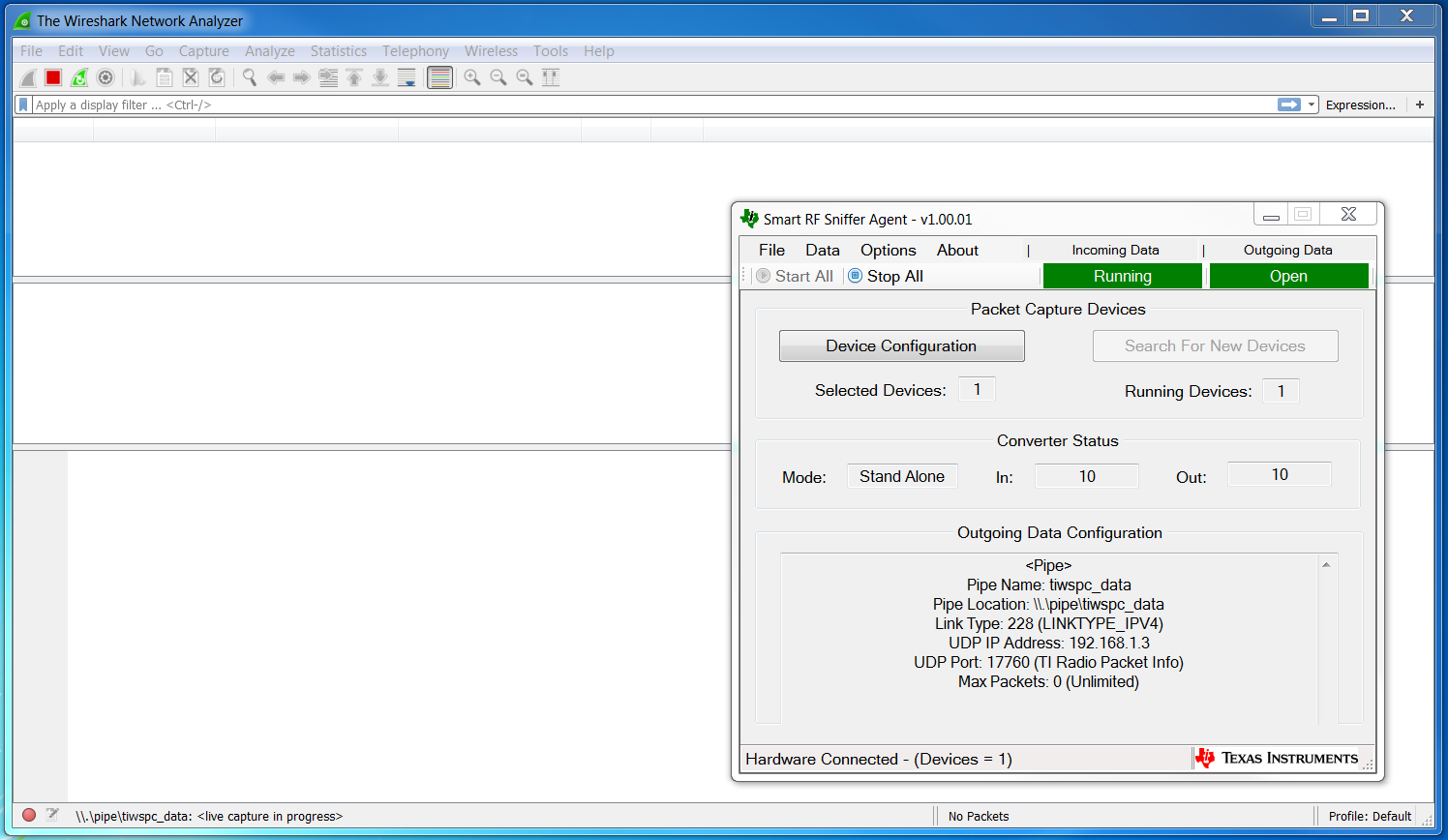
Figure 30. Open Wireshark and Sniffer Agent
- Edit the Wireshark preferences by going to
Edit→Preferencesas seen in Figure 31.
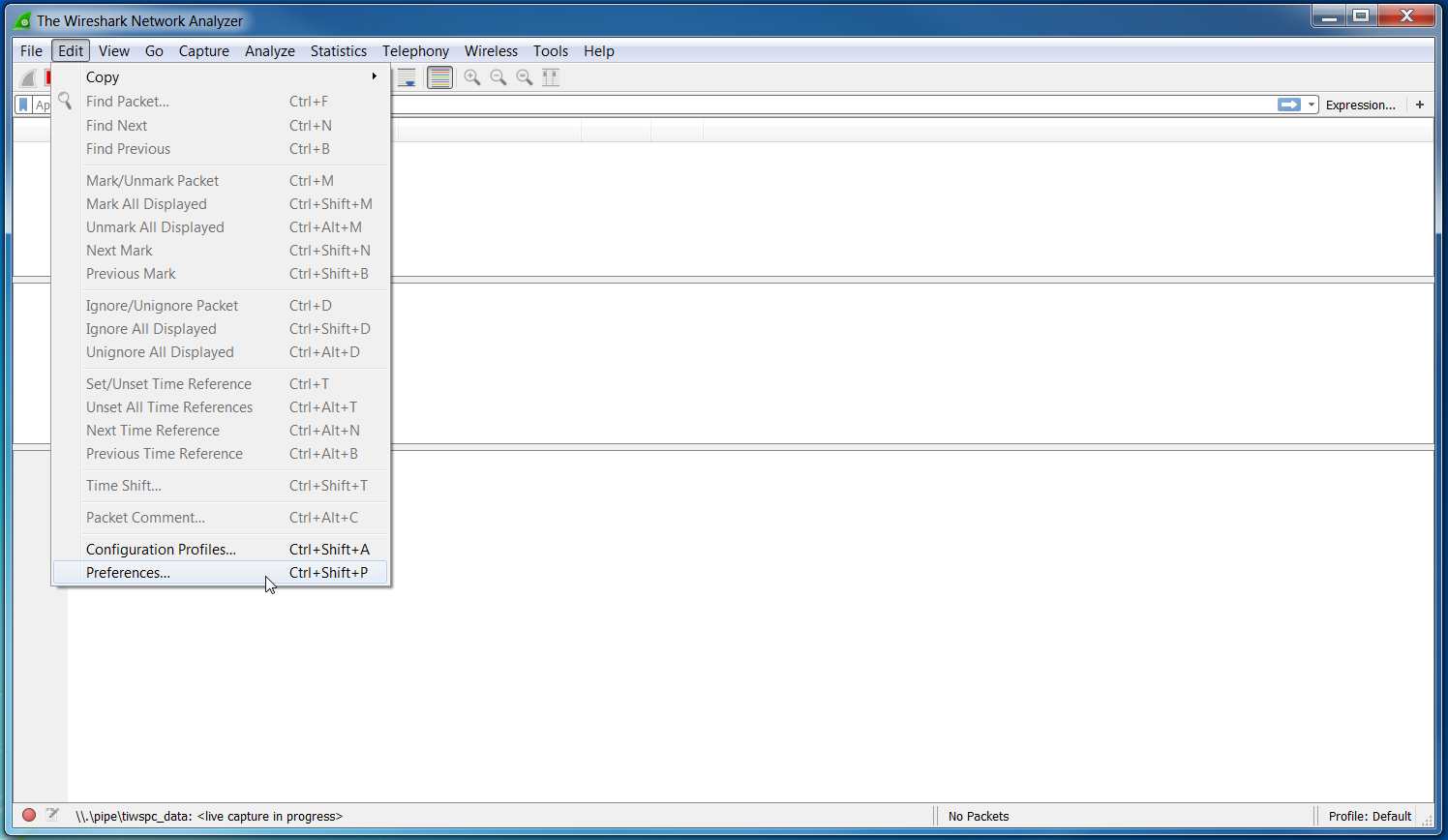
Figure 31. Edit Wireshark Preferences
- Select the Thread Protocol dissector configuration by selecting on the right
Protocol→Thread. Then set theDecode CoAP for Threadoption as seen in Figure 32.
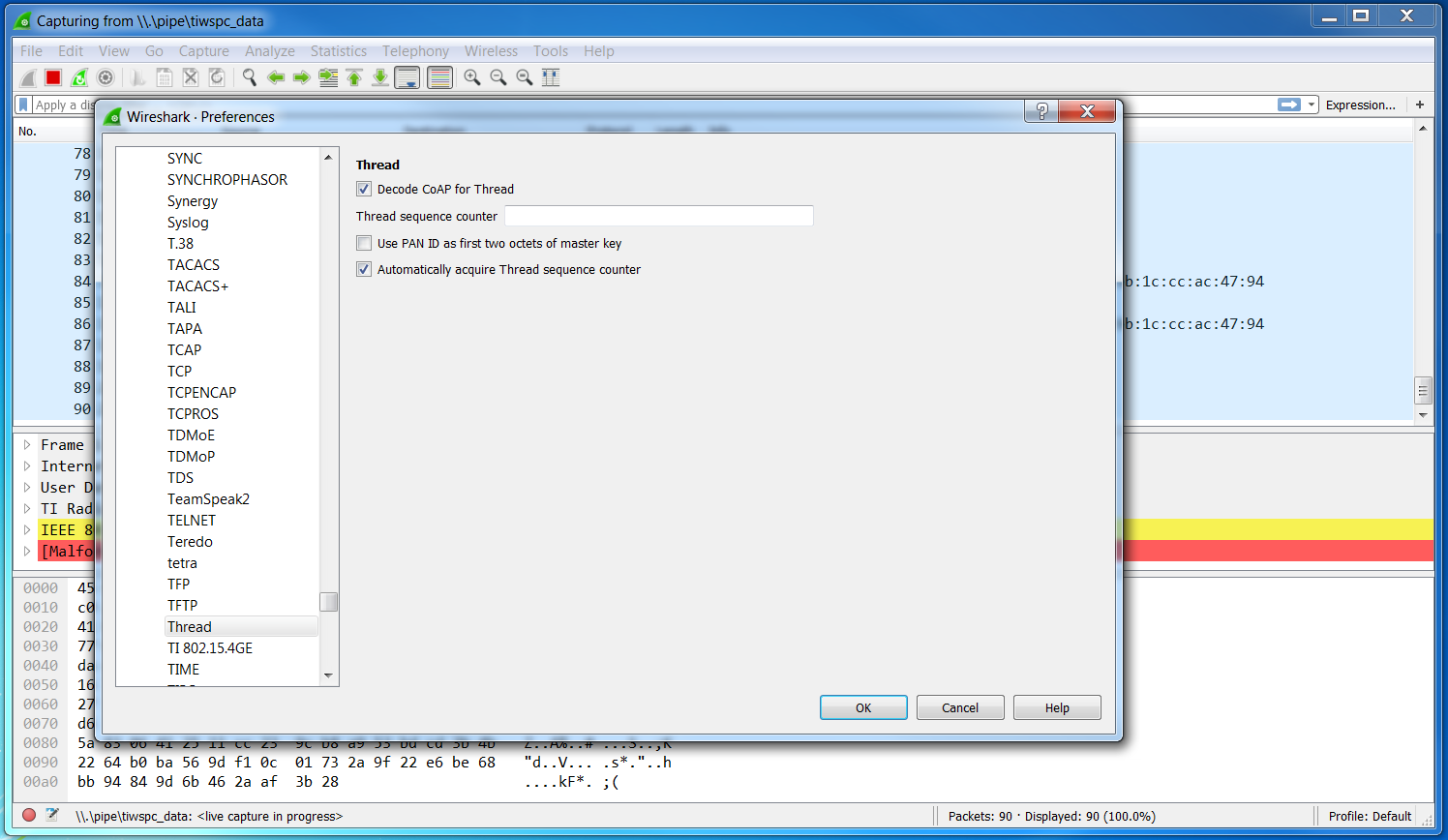
Figure 32. Edit Wireshark Thread Preferences
- Select the CoAP Protocol dissector configuration by selecting on the right
Protocol→CoAPand make sure that the port matches that seen in Figure 33.
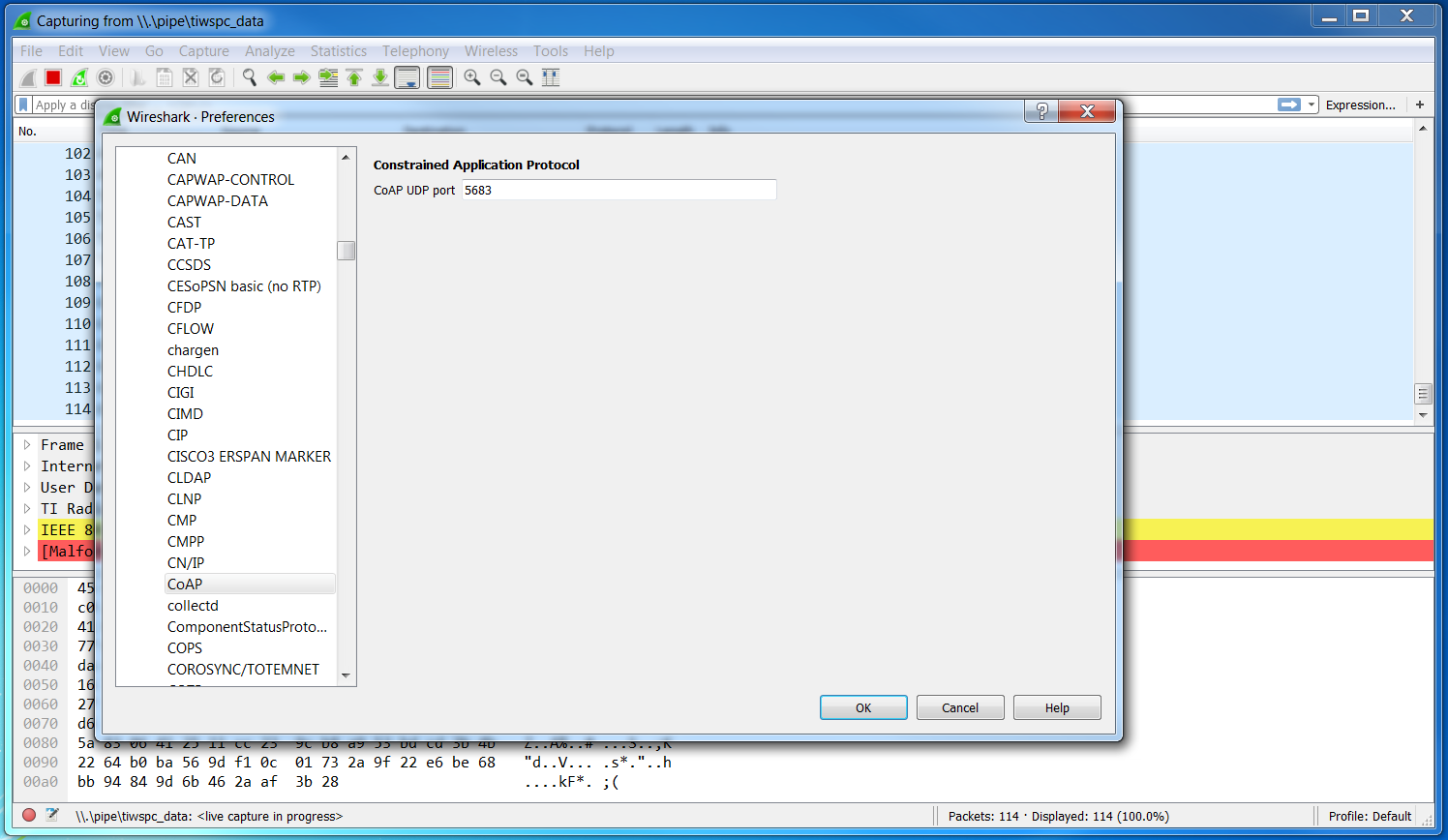
Figure 33. Edit Wireshark CoAP Preferences
- Select the IEEE 802.15.4 Protocol dissector configuration by selecting on
the right
Protocol→IEEE 802.15.4and make sure that the configuration matches that seen in Figure 34.
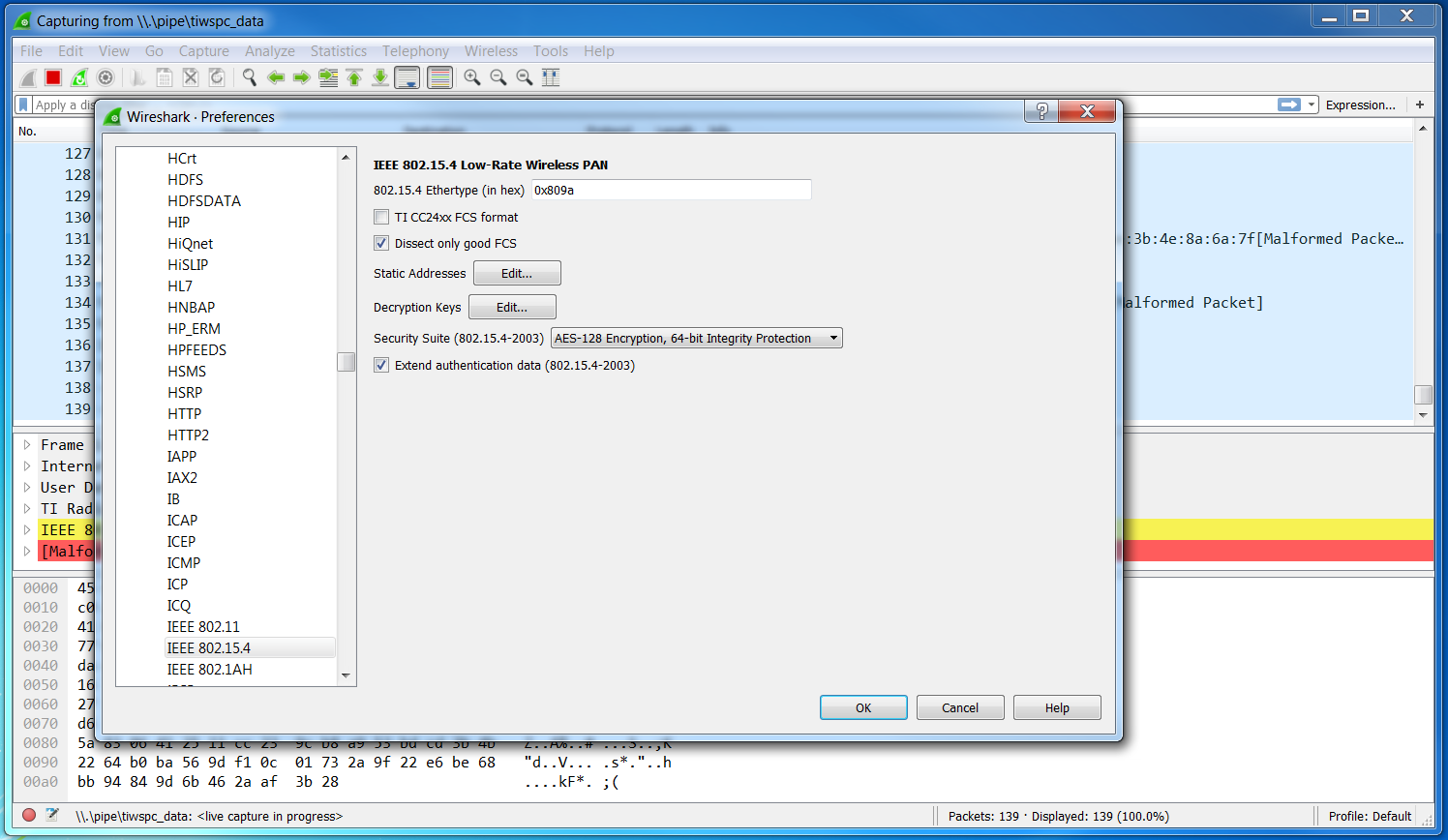
Figure 34. Edit Wireshark IEEE 802.15.4 Preferences
- In the IEEE 802.15.4 Protocol dissector configuration, add a Thread Master
key by selecting the
Edit...button next toDecryption Keysand clicking the+button as seen in Figure 35.
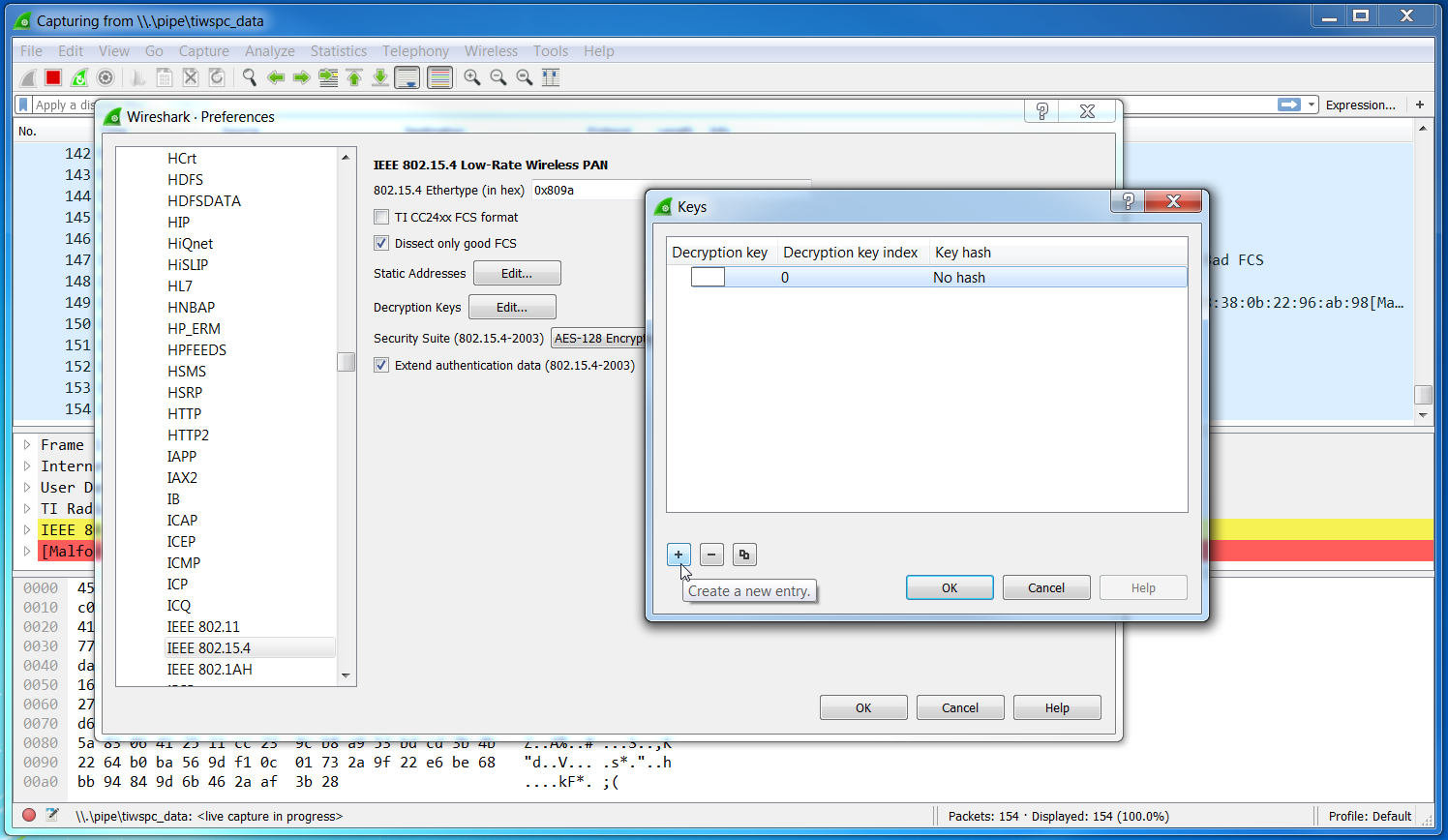
Figure 35. Add IEEE 802.15.4 Decryption Key
Set a key entry with:
Decryption Key 00112233445566778899aabbccddeeffDecryption Key Index 1Key hash Thread hashAs seen in Figure 36.
Note
The Decryption Key is the default value for OpenThread. This should be set to a random value in production. You may have to determine the actual Thread Master Key for a given network. The Thread Test Harness does change these keys in the course of its tests.
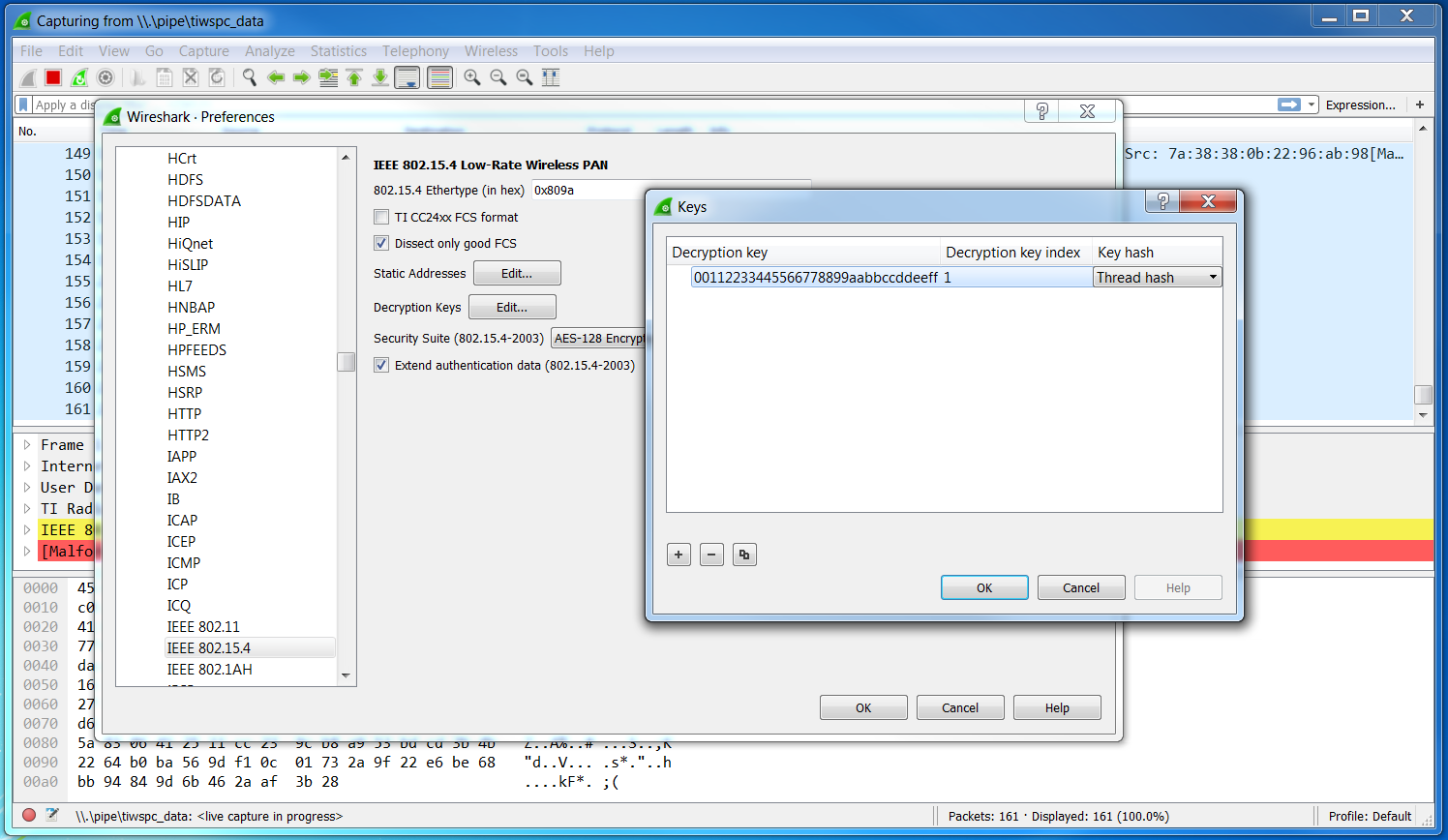
Figure 36. Add IEEE 802.15.4 Decryption Key
- The packets in Wireshark should now be decrypted and dissected correctly as in Figure 37.
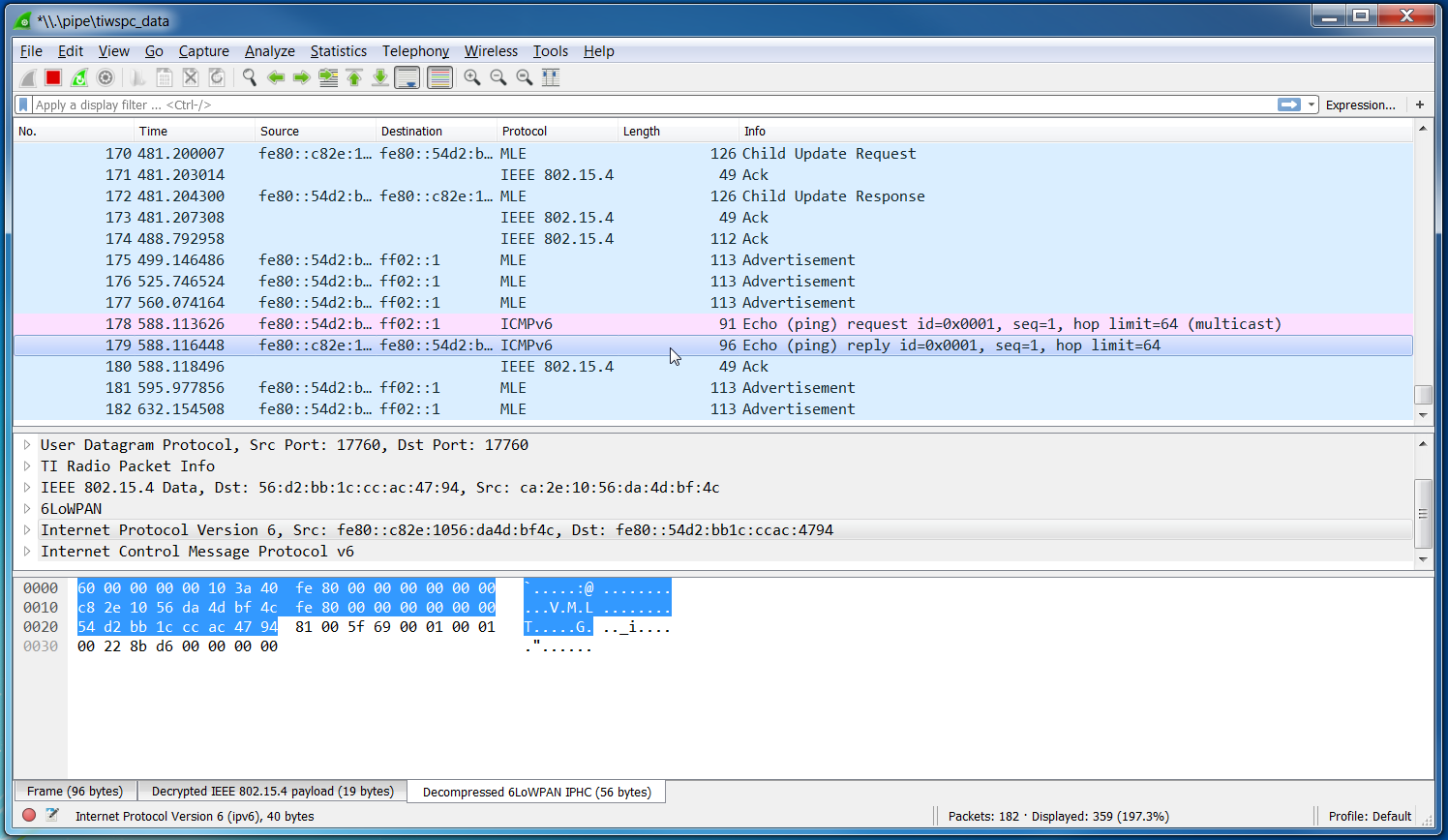
Figure 37. Thread Traffic