F29H85x-SDK  1.02.01.00
 
Download, Install and Setup CCS

Note
The steps on this page need to be done once on a given host machine

Download CCS

Install CCS

  • Install CCS 20.3.0 by double clicking the installer file from the downloaded and un-zipped CCS package file.

    CCS Installer File
  • Follow the steps and at below screen, recommend to keep install directory as default.
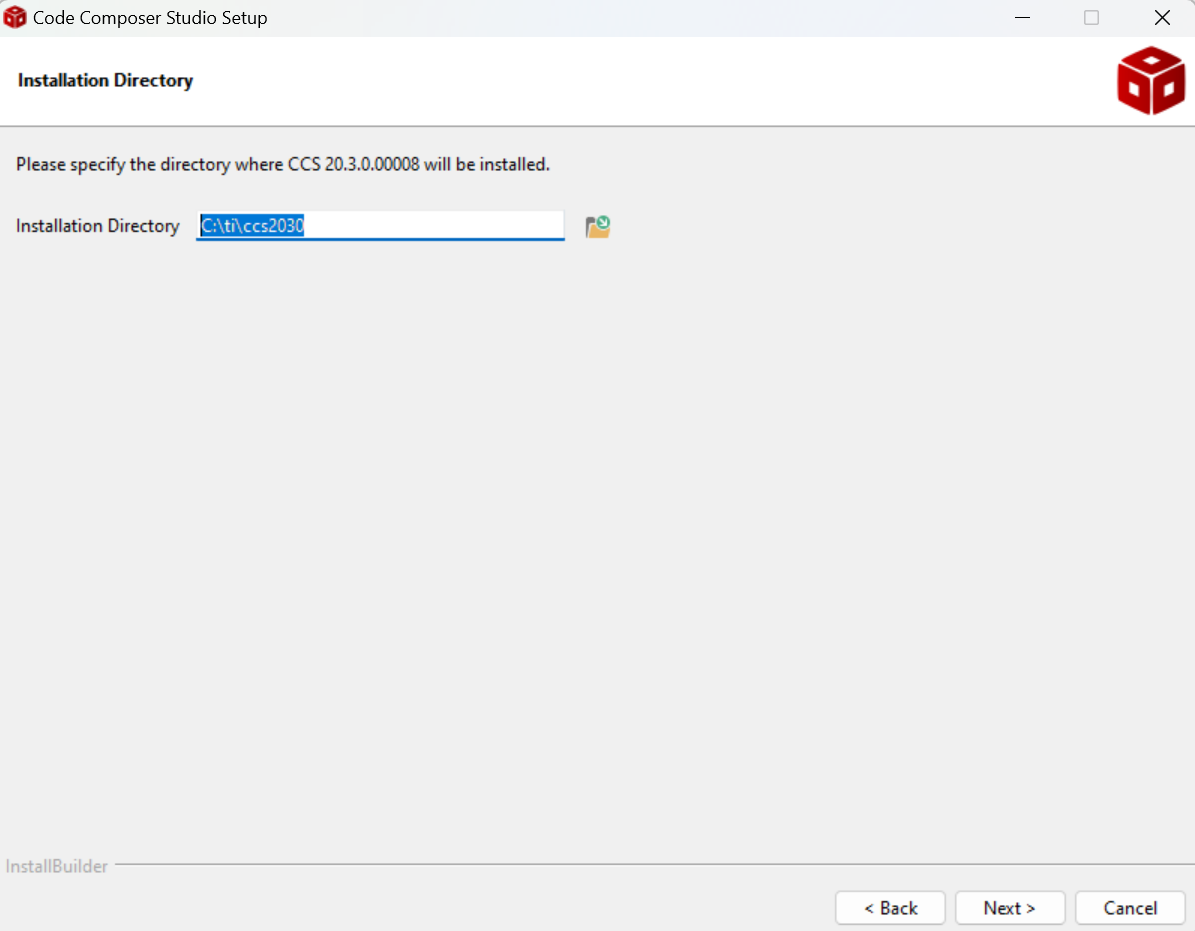
    CCS Install Path
  • Follow the steps and at below screen, select the component as "C2000 real-time microcontrollers" to install F29H85x related emulation and GELs
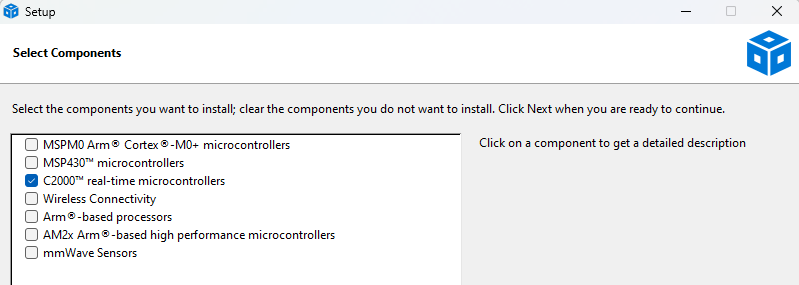
    CCS Select Components
  • Follow the steps, until CCS is installed.
  • Launch CCS and workspace gets created at "C:\Users\user_id\workspace_ccstheia".

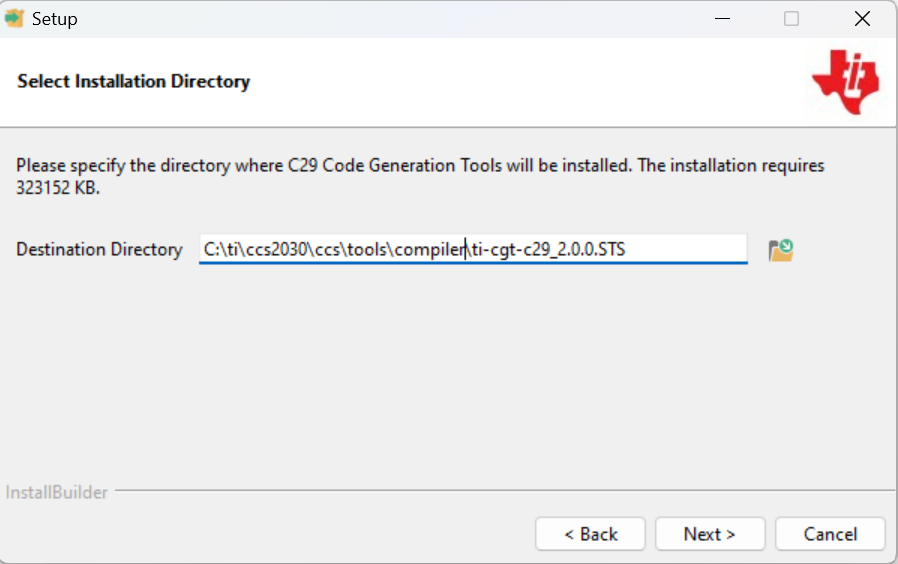
Install C29 compiler "TI CLANG v2.0.0.STS "

Check Packages as seen by CCS

  • Launch CCS
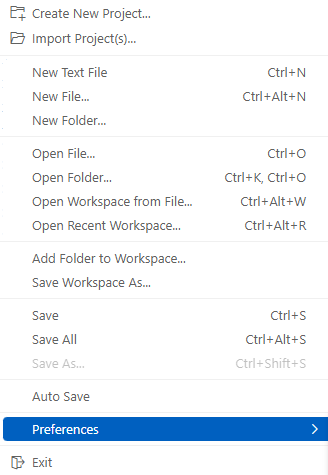
  • Goto "File > Preferences"

    CCS Preferences
  • Goto "Code Composer Studio Settings > General > Products", make sure you see "F29H85X-SDK " listed here.
    • Sometimes, you need to click "Refresh"
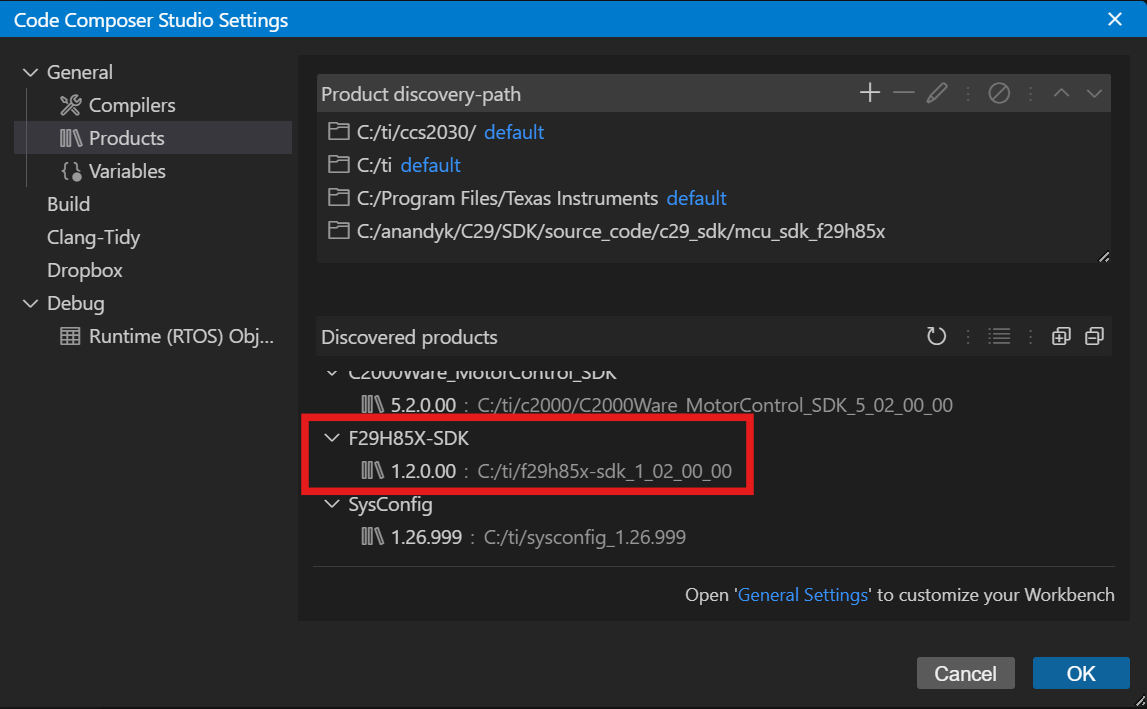
      CCS Products (SDK)
  • Goto "Code Composer Studio Settings > General > Products", make sure you see "SysConfig 1.25.0 " listed here.
    • Sometimes, you need to click "Refresh"
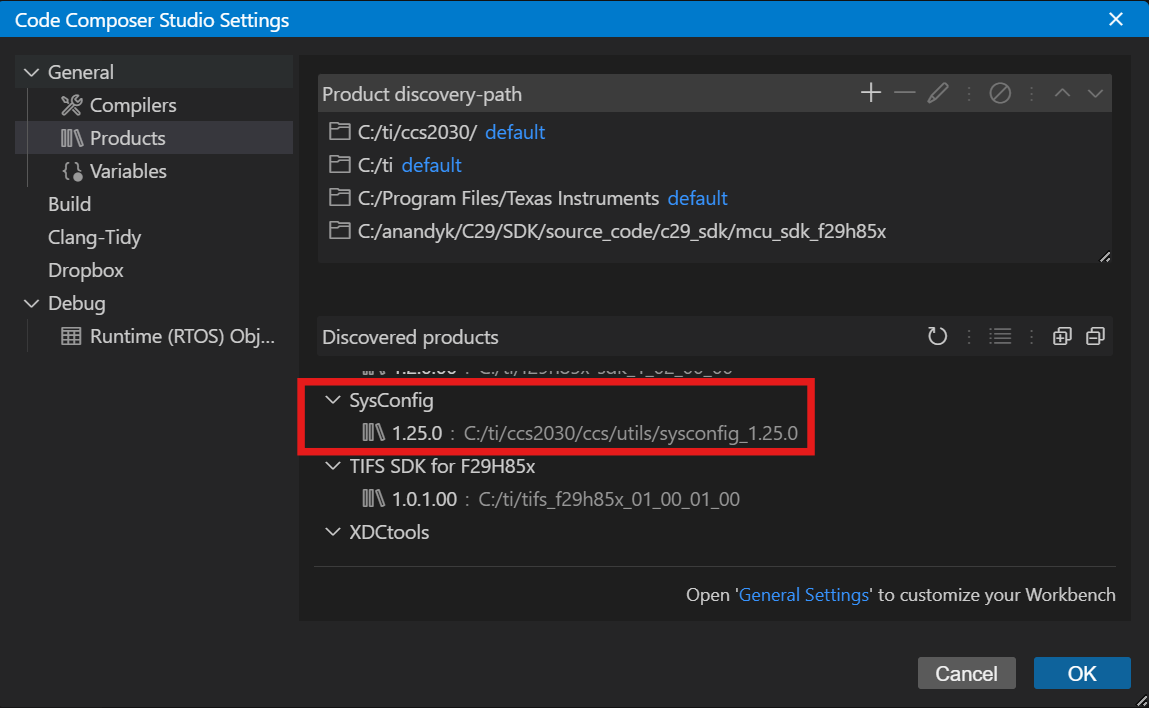
      CCS Products (Sysconfig)
  • Goto "Code Composer Studio Settings > General > Compilers", make sure you see "TI CLANG v2.0.0.STS " listed here
    • Sometimes, you need to click "Refresh"
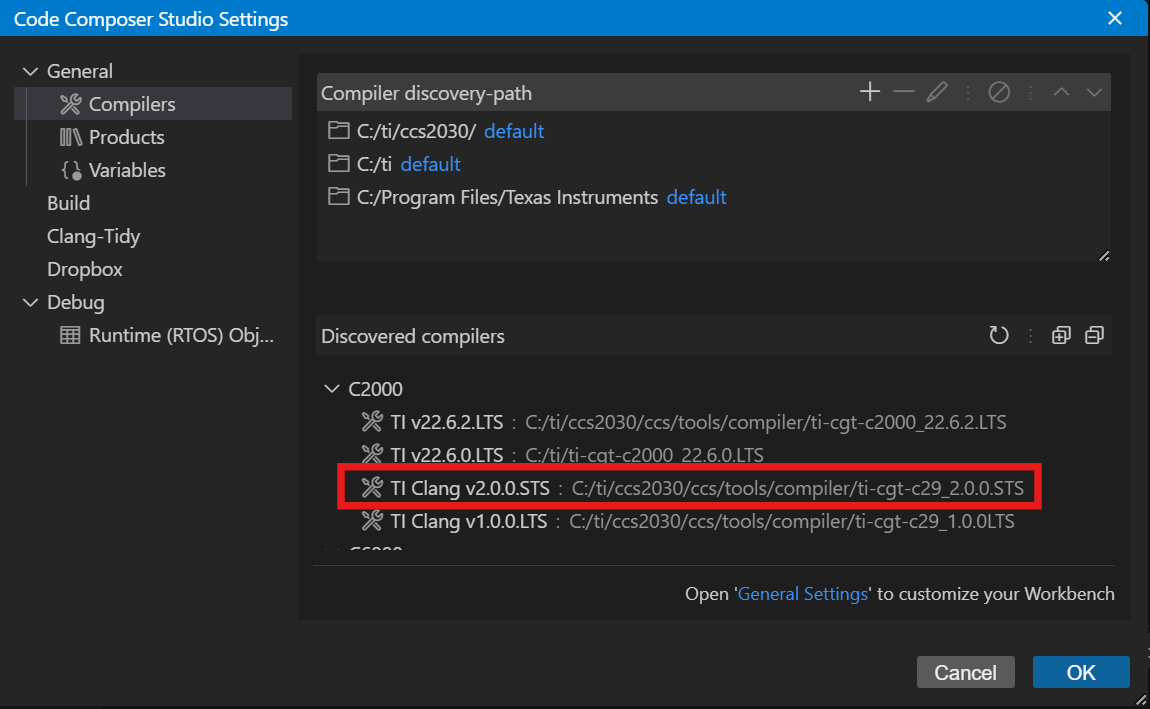
      CCS Compilers